Touch Screen POS, Receipt Printer and Barcode Scanner for Phone Shops
Gadgets POS is cloud software, so the counter kit is short: a touch-screen terminal, a thermal receipt printer and a barcode scanner. We supply them at one-off prices, £390 for all three, and you can use a Windows computer, printer and scanner you already own instead. It needs an internet connection, in a browser or in the desktop app, and has no offline selling mode.
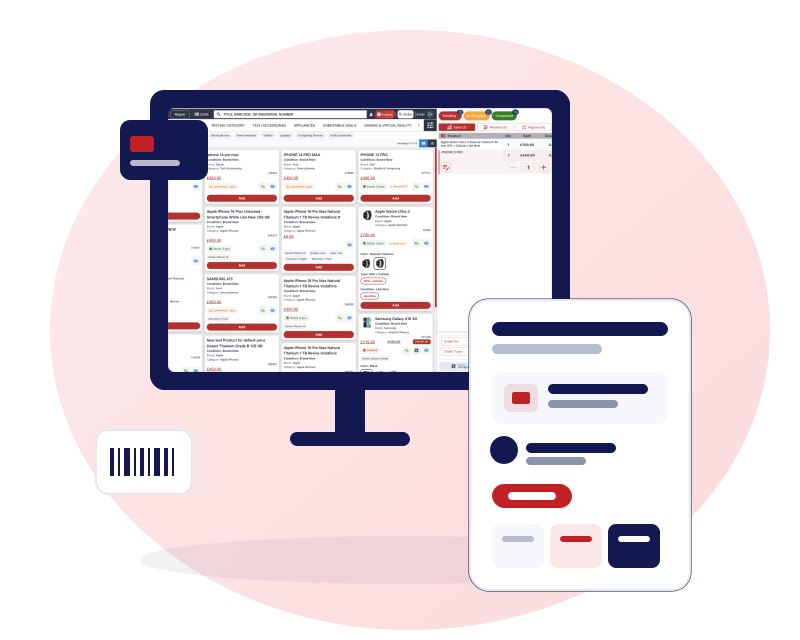
Hardware we supply: touch screen terminal, receipt printer and barcode scanner
Three items cover a phone shop counter. Each price is a one-off price in pounds sterling, not a monthly fee, and the hardware is separate from the software. Start with the 15-day free trial and we quote the software by shop.
15.6-inch touch-screen POS terminal
£270one-off
An all-in-one computer for the counter, with a 15.6-inch capacitive touch screen and Windows 11.
- 15.6-inch capacitive touch screen
- Windows 11
- Wi-Fi 6, Bluetooth and a LAN port
- USB ports for your printer and scanner
What it is for: Running the till at the counter: ring up a sale, a trade-in or a repair by touch, with the screen showing the same Gadgets POS you see in a browser.
How it connects: Join your Wi-Fi or plug in a network cable, then open Gadgets POS in a browser or in the desktop app. Both use your cloud account and need an internet connection. Plug the printer and scanner into its USB ports.
80 mm thermal receipt printer
£80one-off
A desktop thermal printer for till receipts. Thermal printing needs paper rolls and no ink or toner.
- 80 mm paper
- USB connection
- About 166 mm/s print speed
- 203 DPI
What it is for: Customer receipts, and the other slips Gadgets POS prints, such as repair work-item slips and gift card, voucher and loyalty slips.
How it connects: Install it in Windows like any printer, then set the receipt paper size in Gadgets POS to 80 mm. The desktop app prints to the Windows printer port you set, and the browser print dialog also works.
2D barcode and QR scanner
£40one-off
A desktop scanner that reads 1D barcodes, 2D codes and QR codes.
- Reads 1D, 2D and QR codes
- USB connection
What it is for: Scanning a product barcode or an IMEI barcode to add the unit to the cart, in a stock check and when you add lines to a purchase order note.
How it connects: Plug it into a USB port. Gadgets POS reads a scan as typed input, so set the scanner to keyboard mode and make sure each scan ends with Enter.
Touch-screen terminal, receipt printer and scanner together
£390one-off
What you do not need to buy
You do not need a server or a separate back-office computer: Gadgets POS runs on your cloud account, so an ordinary Windows laptop or desktop computer is enough. You do not have to buy the hardware from us either, because a thermal printer and a scanner you already own may work. A cash drawer and a card machine are not part of the three items above.
Set up the printer, scanner and terminal with Gadgets POS
Four settings make the hardware work with the till. You change each one yourself, in Gadgets POS or in Windows.
Set the receipt paper to 80 mm
In Settings, change the receipt paper size to 80 mm. The default is 72 mm, so an 80 mm printer needs this one change.
Install the printer in Windows first
The desktop app prints to the Windows printer port you set, and direct printing from the app is for Windows computers. Install the printer in Windows, then enter its port. The browser print dialog works with any printer your computer can print to.
Set the scanner to keyboard mode
Gadgets POS reads a scan as typed input, so the scanner must be set to keyboard mode and must end each scan with Enter. The code then arrives in the till just as if you had typed it.
Connect the terminal to the internet
Use Wi-Fi 6 or a network cable. Gadgets POS needs an internet connection, in a browser or in the desktop app, and there is no offline selling mode.
Thermal receipt printers: 58, 72 and 80 mm paper, and A4
Receipts print on thermal receipt printers using 58, 72 or 80 mm paper, or on A4 when you want a full invoice. Gadgets POS sends standard ESC/POS commands, which common thermal receipt printers understand.
Thermal receipts
Print the till receipt on 58, 72 or 80 mm paper. The layout adjusts to the paper width you choose in Settings.
A4 receipts and invoices
Print an A4 receipt for trade customers, larger orders or anyone who wants a full invoice with your VAT number.
More than a sales receipt
Repair work-item slips, purchase order receipts, gift card, voucher and loyalty card slips and barcode slips all print from the same system.
Email instead of paper
Send the receipt to the customer by email as an HTML message with a PDF attached.
WhatsApp receipts (rolling out)
Share a receipt on WhatsApp from the receipt screen. Once you connect your own WhatsApp Business number, the receipt is sent as a PDF from your number. We are still improving it.
Labels: Zebra and DYMO, with IMEI and repair labels
Labels print on Zebra and DYMO label printers, with templates for the labels a phone shop uses every day. Label printers are not part of the three items we supply.
IMEI and serial barcode labels
Put the IMEI or serial number on a label as a barcode, so a unit can be scanned at the till or in a stock check.
Repair and sale labels
Print labels for repair jobs and for items on sale, using templates built for those jobs.
Spec labels
Show storage, RAM and processor from the product on the label, which helps when you sell used phones and laptops.
Box labels for shipments
Where container shipments are switched on for your business, box labels print for each box in the consignment.
Barcode scanners for a phone shop: IMEI, barcode and QR
Gadgets POS works with barcode scanners that behave like a keyboard: scan, and the code is typed into the box that has the focus. A USB scanner set to keyboard mode works this way, as the set-up notes above explain.
Scan to add an item to an order, scan an IMEI to add a unit, scan during a stock check and scan to add lines to a purchase order note. A unit that is already in another open cart anywhere in your business is refused at the scan, which stops it being sold twice.
The scan must end with Enter. We have not tested every scanner model, so tell us what you plan to buy and we will confirm whether it works.
Cash drawer
A cash drawer connected to your receipt printer can be opened by the system when a sale is completed.
The system sends the standard command to the receipt printer, and the printer opens the drawer, so the printer needs a cash drawer port. Check that your drawer and printer are designed to work together, and tell us the models.
A desktop app for your till, running on your cloud account
The Gadgets POS desktop app opens your cloud account in its own window on the counter computer. It is the same system you see in a browser, so it needs an internet connection and has no offline selling mode. On a shop counter it is normally installed on a Windows computer.
The app has been built for Windows, macOS and Linux, but printing straight to a printer port works on Windows only. Tell us your operating system and your printers and we will say how to get the app and what to expect.
Printer settings in the app
Set your receipt printer, your A4 printer and your label printer in the app's own settings windows.
Receipts, labels and the drawer on Windows
On Windows the app sends receipts and labels to the printer port you set and can open the cash drawer after a password prompt. Direct printer-port printing is set up for Windows computers today.
DYMO label designs
DYMO label printing uses label designs that ship with the app, including IMEI, repair and QR code labels.
Same account, same data
Sign in with the same login as the browser version. Sales, stock and reports are the same ones, held in the cloud rather than on the counter computer.
Card machines and other hardware
Card payments are recorded on the order next to cash and bank payments.
Card machines are not part of the hardware we supply. Tell us which card machine you use, and we will explain how the sale and the card payment line up.
Keep reading
POS system for mobile phone shops
The till, stock room and repair bench of a phone shop in one system.
EPOS system for mobile phone shops
The UK till: scan, split-pay, print, VAT and daily closing.
IMEI and serial number inventory software
Scan to sell, block double sales and search any IMEI.
POS system for gadget and electronics shops
Scan-first checkout, serial numbers and labels for electronics shops.
Point of sale for phone and repair shops
Sale, return, replace, trade-in and repair on one order.
Gadgets POS pricing and free trial
How we quote the software, and what the 15-day free trial involves.
Questions about POS hardware
What POS hardware do you supply?
We supply a 15.6-inch touch-screen POS terminal with Windows 11 for £270, an 80 mm thermal receipt printer for £80 and a 2D barcode and QR scanner for £40. All three together are £390. These are one-off prices, not monthly fees, and they are separate from the software, which we quote by shop.
Do I have to buy the hardware from you?
No. Gadgets POS runs on your cloud account, so an ordinary Windows computer is enough. It works with common ESC/POS thermal printers and keyboard-style barcode scanners you may already own. We have not tested every model, so tell us what you plan to use and we will confirm whether it works.
Can I use Gadgets POS on a touch screen?
Yes. Gadgets POS can be used on a touch screen, and an optional on-screen keyboard can be switched on in Settings. We supply a 15.6-inch touch-screen terminal with Windows 11 for £270. It runs Gadgets POS in a browser or in the desktop app and needs an internet connection, because there is no offline selling mode.
How do I set up an 80 mm receipt printer?
Install the printer in Windows, then open Settings in Gadgets POS and set the receipt paper size to 80 mm, because the default is 72 mm. The desktop app prints to the Windows printer port you set, and the browser print dialog also works. Direct printing from the desktop app is for Windows computers.
Which barcode scanner works with a phone shop POS?
Scanners that type the code and end with Enter work, which includes most USB scanners set to keyboard mode. The 2D scanner we supply for £40 reads 1D barcodes, 2D codes and QR codes over USB. We have not tested every scanner model, so tell us what you plan to buy before you order it.
Is the hardware price a monthly fee?
No. The £270 terminal, £80 printer and £40 scanner are one-off prices in pounds sterling. The software is separate: it has a 15-day free trial and is quoted by shop, so tell us how many shops you run and whether you want the online shop. The pricing page explains how we quote.
Is there a Gadgets POS desktop app?
Yes. The desktop app opens your cloud account in its own window, so it needs an internet connection and has no offline selling mode. It has receipt, A4 and label printer settings, and on Windows it sends receipts and labels to the printer port you set and can open the cash drawer. Ask us how to get it.
Can I send a receipt on WhatsApp?
Yes, in two ways. From the receipt screen you can share the receipt on WhatsApp. WhatsApp receipts sent as a PDF from your own WhatsApp Business number are rolling out: you connect the number once from your dashboard. We are still improving it, so ask what is live for your shop.
Which label printers are supported?
Zebra and DYMO label printers are supported, with templates for IMEI barcode labels, repair labels, sale labels and spec labels. Label printers are not part of the hardware we supply. As with receipt printers, we have not tested every model, so check yours with us before you buy.
Does it open my cash drawer?
Yes, if the drawer is connected to a receipt printer that has a cash drawer port. The system sends the standard drawer command to the printer when a sale is completed. A cash drawer is not one of the items we supply, so check that your drawer and printer are compatible and tell us the models.
Does the terminal work without internet?
No. Gadgets POS runs in the cloud and needs an internet connection to take sales, so there is no offline selling mode, on the touch-screen terminal, in a browser or in the desktop app. If your connection is unreliable, plan a backup such as mobile data, and tell us about it when you start your trial.